Connecting a server
Connecting to OPDS servers is part of Panels Premium.
This page covers the parts that are the same for every OPDS server. For the details specific to yours — where to find the feed URL, whether it needs credentials — see the guide for Komga, Kavita or Calibre.
Adding the server
Open Panels and go to Library → Connect Service → OPDS.
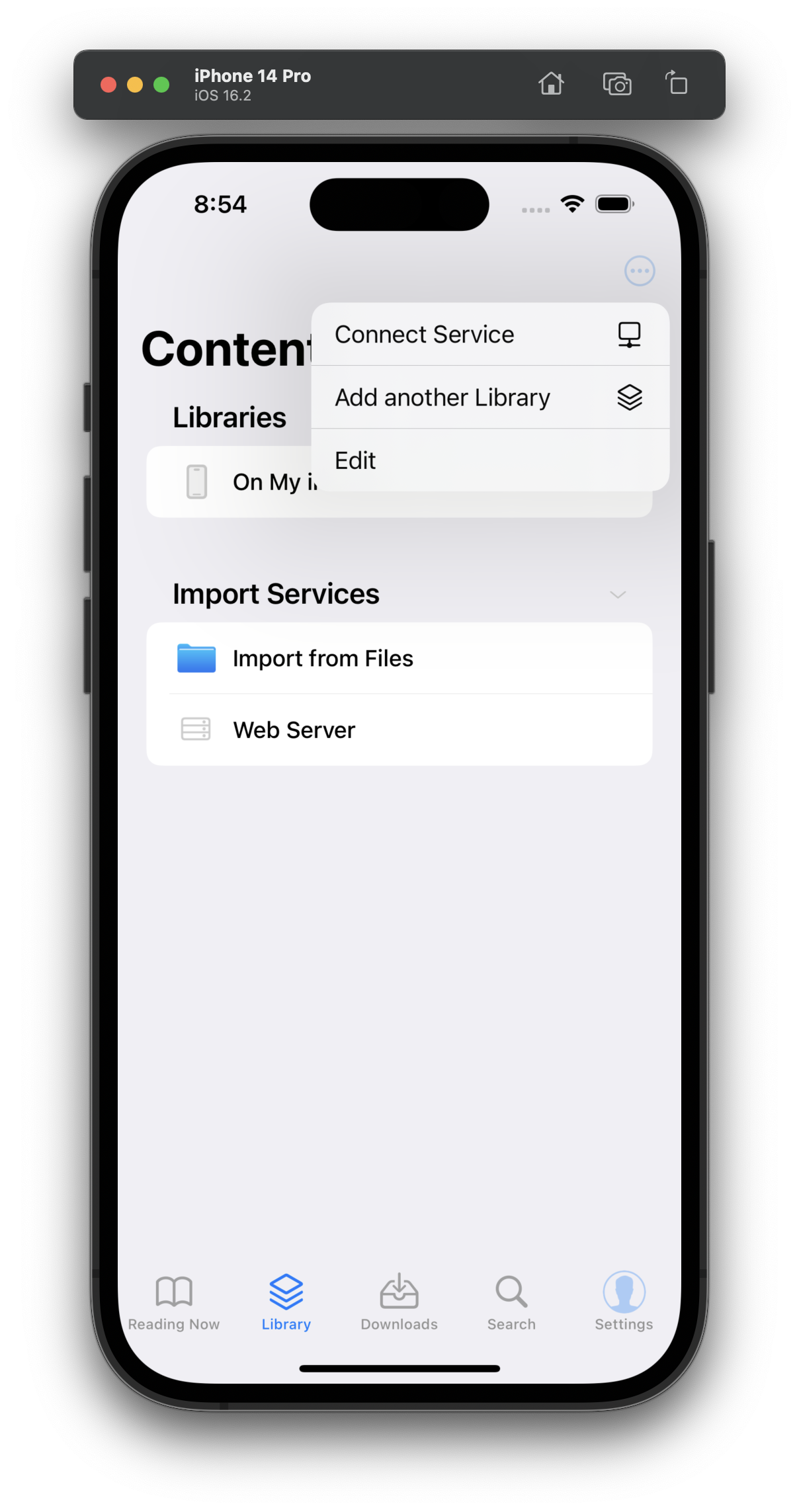
Give the server a name, then fill in the connection details. On your local network that's your server's IP address and the port it listens on:
| Field | Value |
|---|---|
| Server address | http://192.168.1.10 |
| Port | 25600 |
| Username / Password | your server credentials, if it uses them |
Panels finds the OPDS feed on its own, so you usually don't need to append a catalog path to the address.
Reaching your server from outside your home — through a reverse proxy, Tailscale or a domain name? The fields are filled in differently, and the Port field should be left empty. See Expose your server.
Your server appears twice
Once it's added, your server shows up in two places, and this trips people up at first:
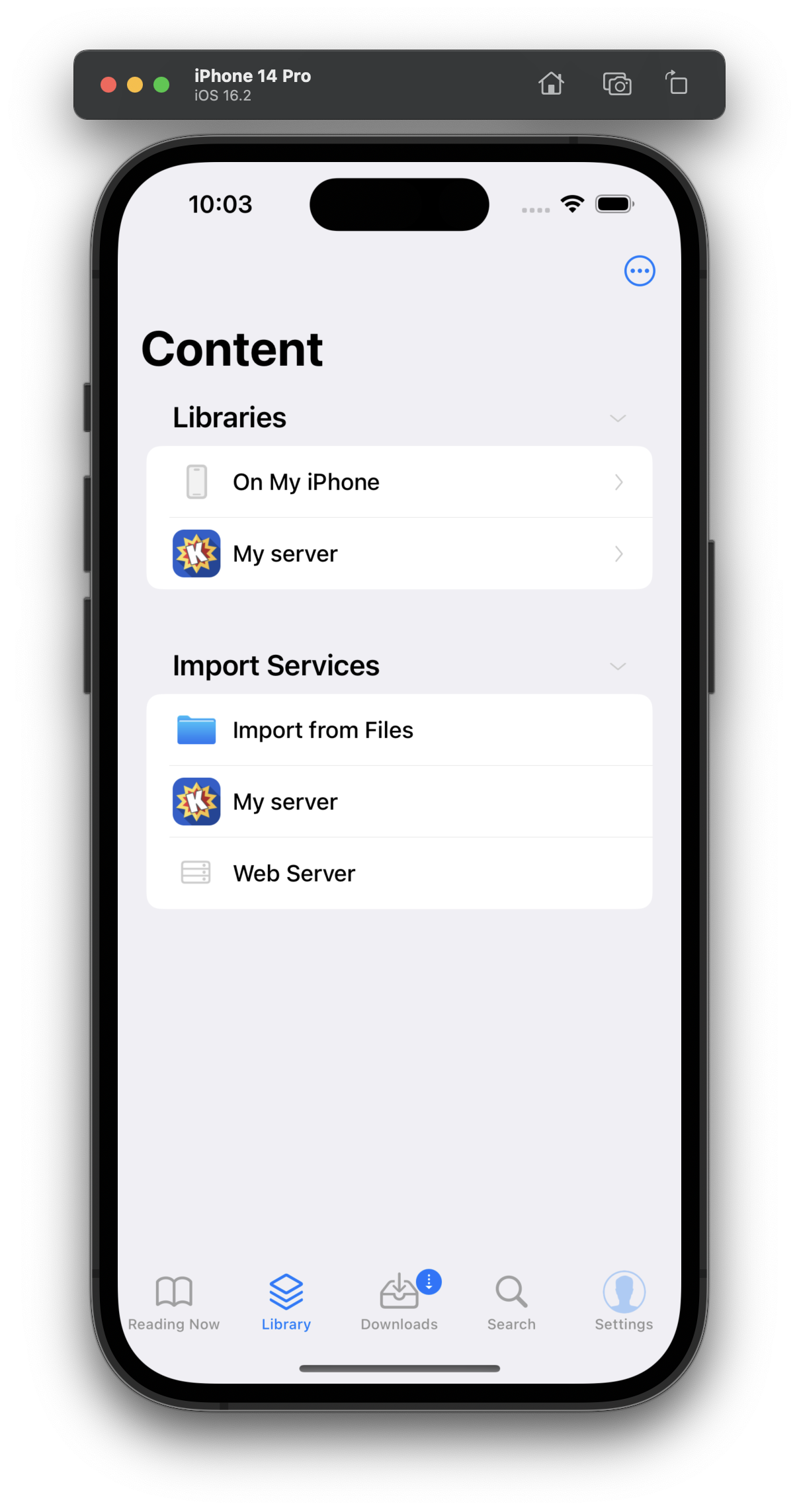
- As a library, for browsing and streaming without using device storage.
- As an import service, for downloading files into a library on your device.
They're the same server. Which one you use depends on whether you want the comics on your device or not.
The screenshots on this page show Komga, but the flow is identical for every OPDS server.
Using it as a library
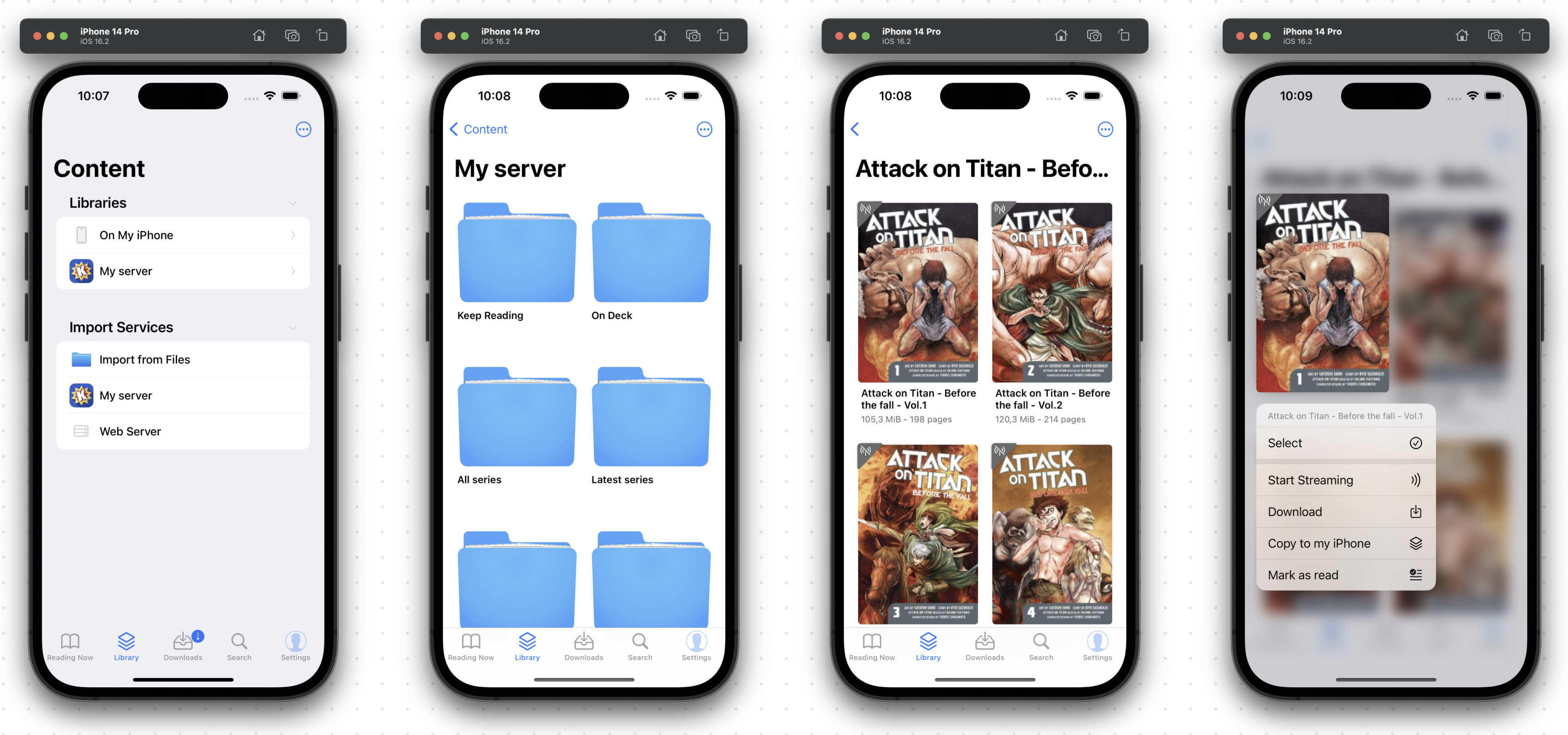
Panels treats an OPDS feed as a library, so you can browse your server as if the collection were on your device — while the files stay where they are.
Tap a title to open and stream it, or download it for offline reading. Long press a title (or select several) to see all the options.
Continue reading doesn't work while streaming over OPDS yet. It's waiting on OPDS 2.0 being released and adopted by both Panels and the servers.
Using it as an import service
Use this when you mainly want to pull comics down onto your device. There are two ways round it:
Start from the server. From the content screen, tap your server, navigate to the files you want, select them, and then choose where to put them in your device library.
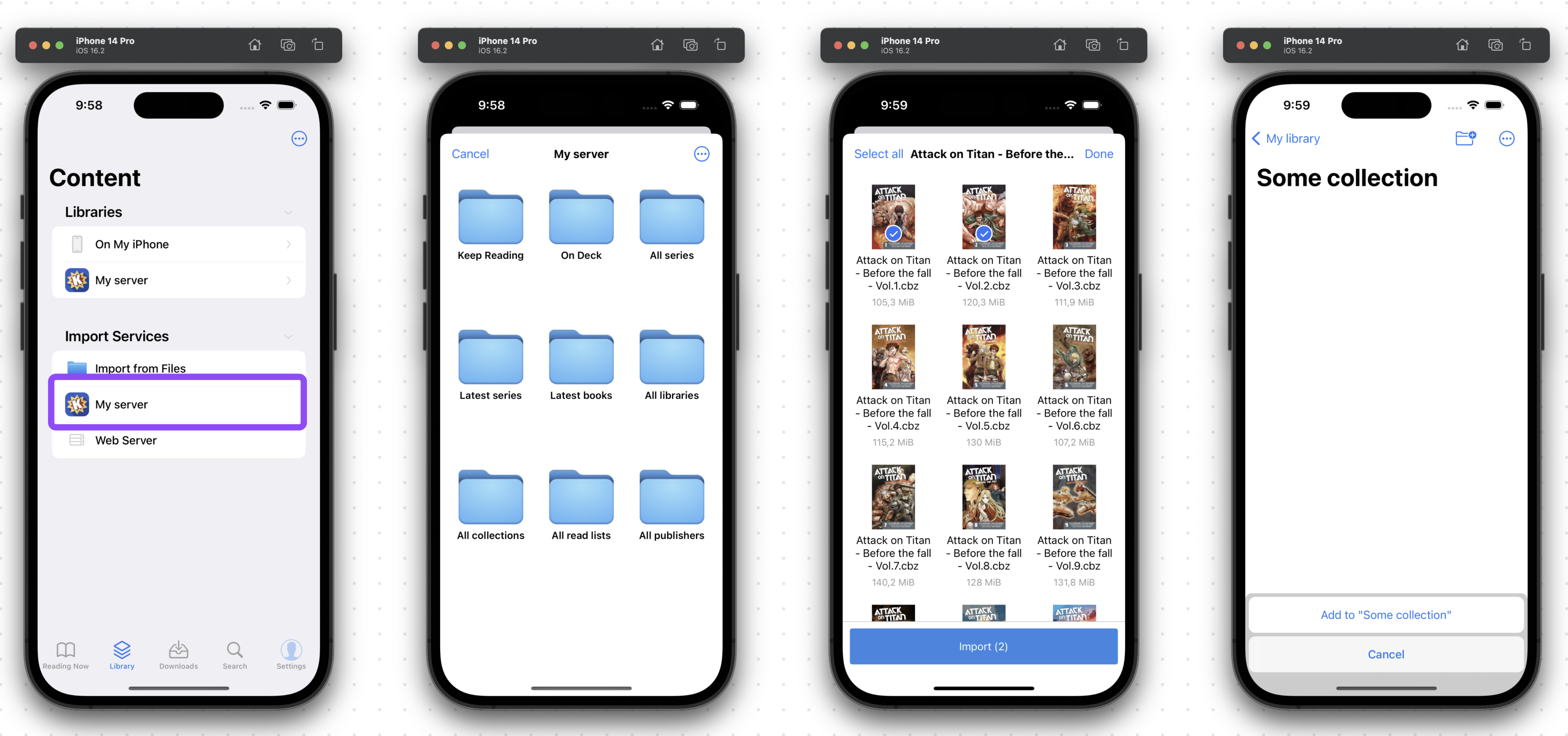
Start from the destination. Navigate to the spot in your device library where you want the files, tap the "..." button and choose Import Files. Pick your server and find what you want.
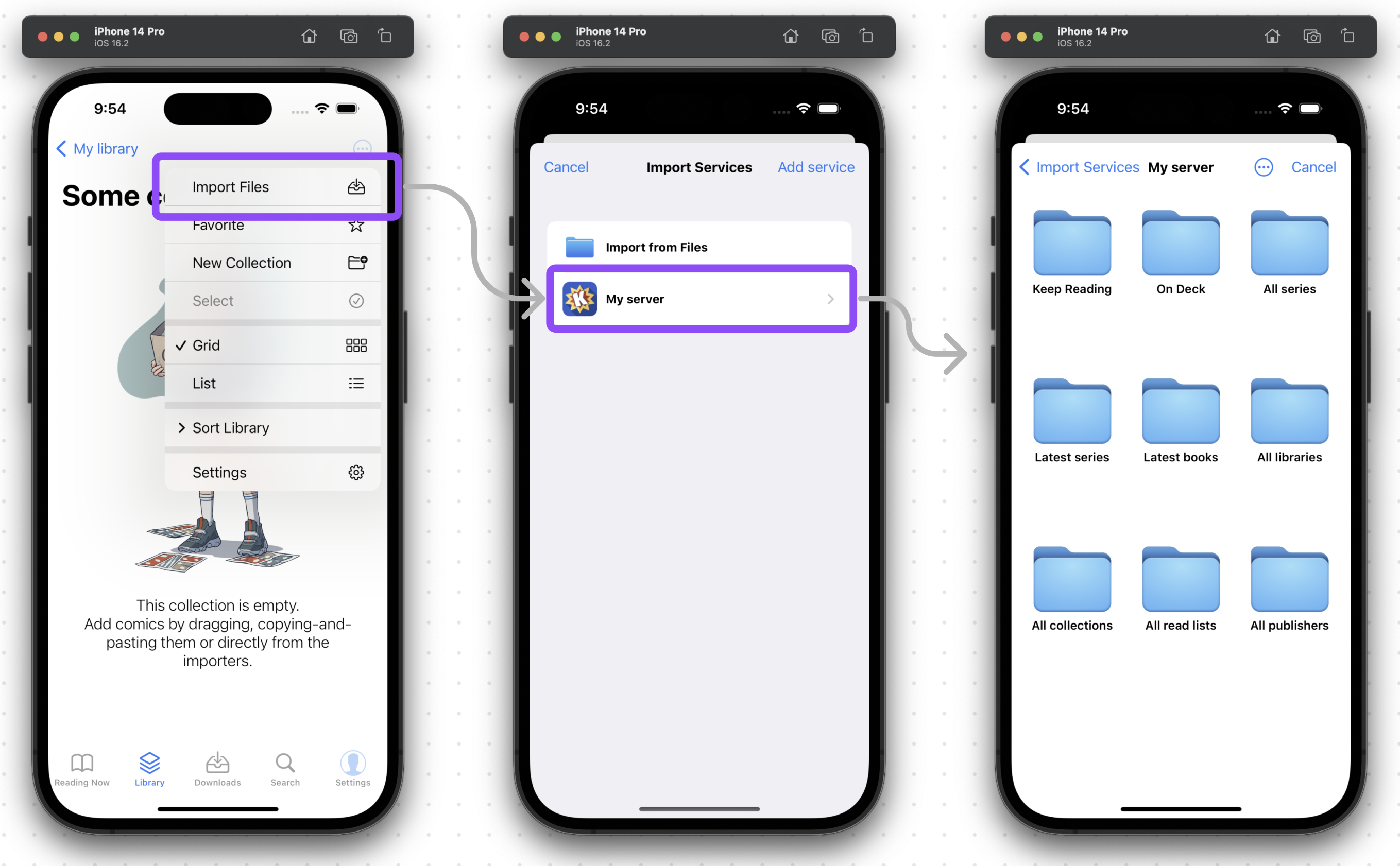
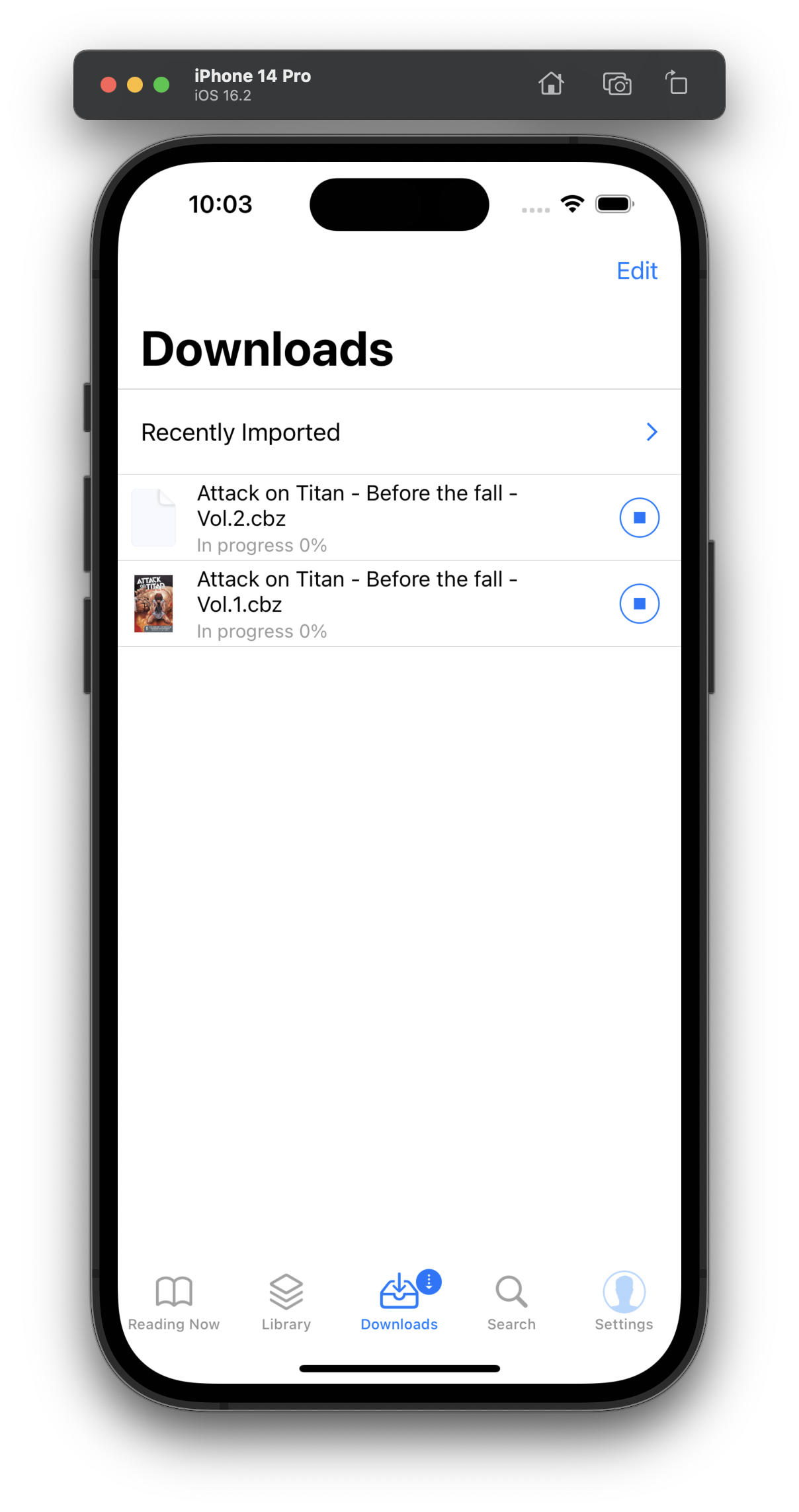
Either way the download starts straight away, and you can watch it from the Downloads tab.