From your Mac or device
Panels tries to be a good iOS citizen, so it works with all the standard ways of moving files around. Whichever route you take, your comics end up in a Panels library folder, and Panels indexes them automatically.
Make sure to check which files are supported first.
From your Mac
Cable
Connect your device to your Mac and open Finder. Your device appears on the left, under Locations.
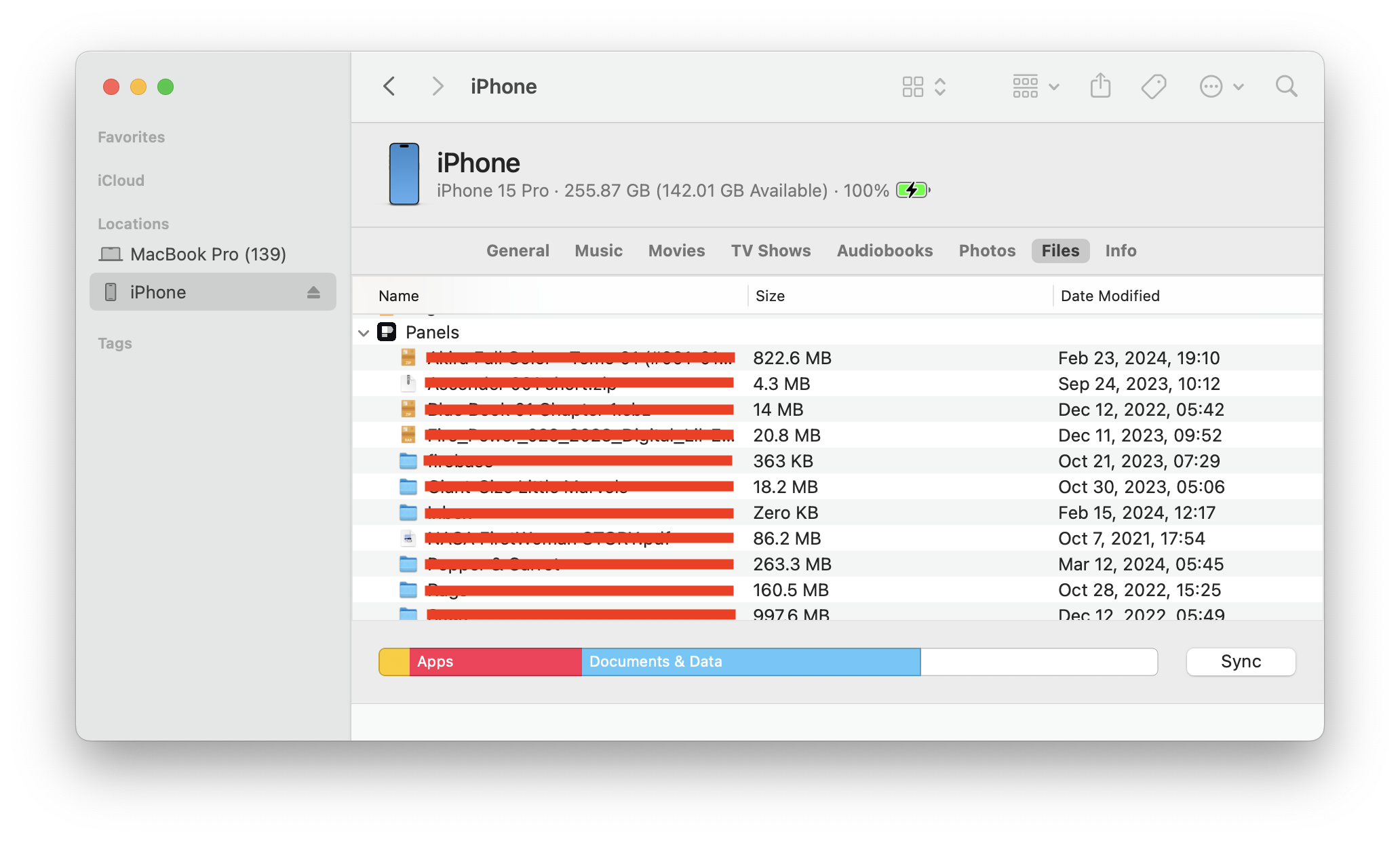
Select it and go to Files. Scroll down the list of apps until you find Panels, then drag and drop your comics onto it. Panels shows them once it finishes indexing.
Each folder becomes a collection, so you can drag whole folder trees, not just individual files.
AirDrop
Select the files on your Mac and AirDrop them to your iPhone or iPad — this works between iOS devices too.
Since iOS 17, AirDrop no longer asks which app should open the files; it drops them straight into the Files app. From there, follow moving files in the Files app below.
Web server
The web server is part of Panels Premium. AirDrop, cable and Files app imports are free.
The web server runs from your iOS device, so you can upload comics from any computer on the same Wi-Fi network without a cable.
Go to Library → back to Content → Web Server, then tap Start server. A URL appears — open it in your Mac's browser and drop your files there.
If your device is low on storage, consider an iCloud Drive library or keeping your content on your own server instead of copying everything across.
Content already on your device
If the comics are already on your iPhone or iPad — downloaded in Safari, or sitting inside another reading app — any standard iOS mechanism will bring them into Panels.
The easiest is the Files app. Otherwise you can use:
- Share (the arrow pointing out of a square) from the app holding the files.
- Drag and drop. Easy on iPad with two apps side by side. It works on iPhone too, you just need two hands — one to hold the files under your finger, one to navigate to Panels.
Importing from the Files app
The Files app is the iOS equivalent of Finder. There are two ways to use it.
Using the Panels importer
The quickest option. In Panels, tap the "..." button in the library content screen and choose Import from Files. Navigate to your comics, tap Open, and pick where they should go in your library.
Moving files yourself
You can also move files directly, which is handy when you're migrating a large collection from another app.
- Find your content in the Files app. It might be in Downloads, or in another app's folder.
- Long press a file to select it, or tap the "..." button and choose Select for multi-selection.
- Choose Copy or Move. Copy leaves the originals in place, which duplicates the storage they use — worth remembering with large collections.
- Go back to the root Browse screen, tap On my iPhone/iPad, and open the Panels folder (it has the Panels icon). This is your main library.
- Open the collection you want and paste or move the files in.
Panels represents folders as collections, so you can reorganize your whole library from the Files app. It re-indexes to reflect any changes you make.
You can have more than one library, and you can keep one synced across devices with iCloud Drive.