From cloud services
Panels can connect to external services so you can browse them from inside the app and pull comics straight into your library.
Dropbox, OneDrive, SMB and OPDS connections are part of Panels Premium. Importing from the Files app is free.
All of them are added the same way: from the library content screen, tap the "..." button and choose Connect service.
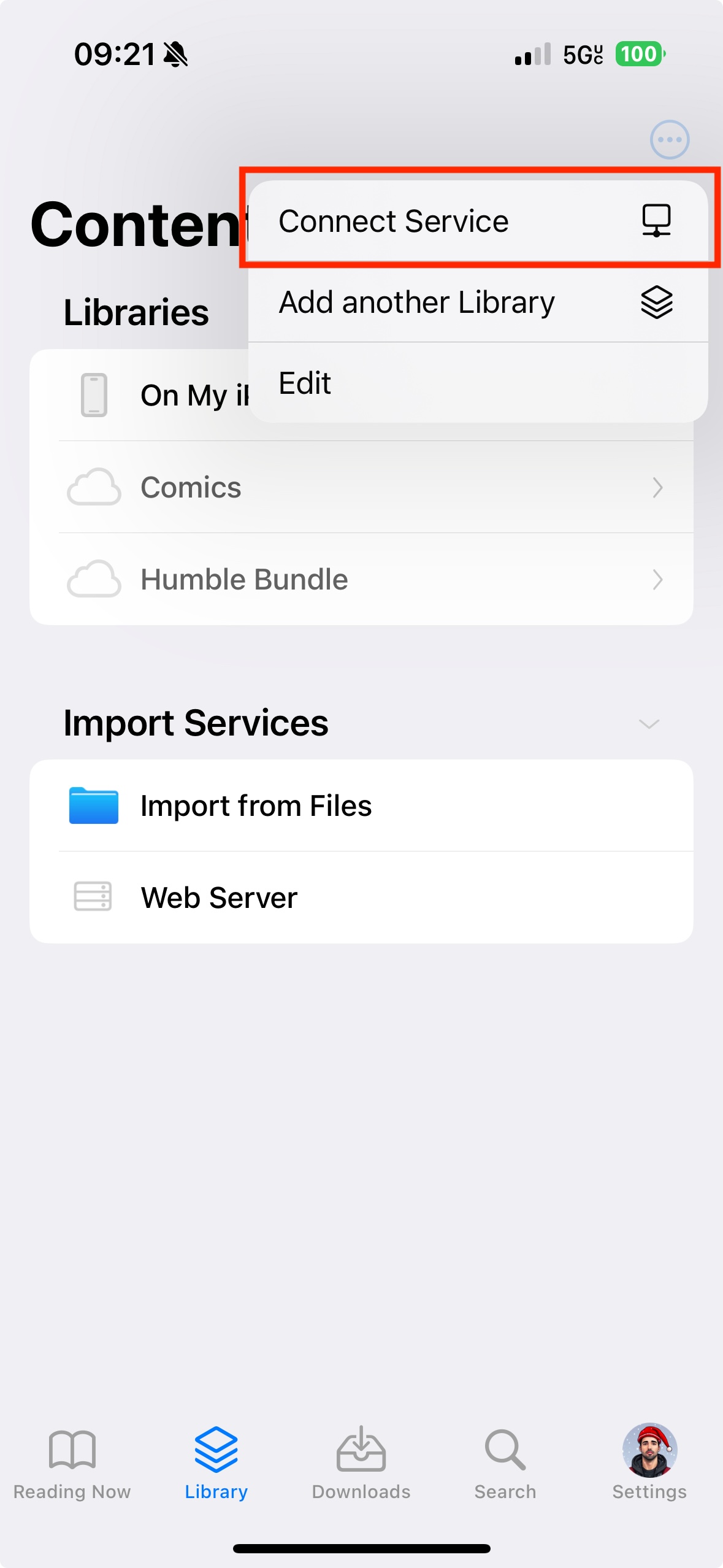
Dropbox and OneDrive
Both work identically. Pick the service and follow the on-screen instructions to sign in to your account.
Once connected, a new entry with that service's icon appears under Import Services. Tap it to browse your files and select the ones you want.
The files you chose show up under Downloads while they transfer. When they finish, they appear in your library ready to read.
SMB server
SMB (Server Message Block) shares files between devices on the same network — handy if your collection lives on a Mac or a NAS.
To share from a Mac, follow Apple's guide to SMB file sharing. Once it's enabled, note the SMB address, for example smb://192.168.68.72.
In Panels, add a new service, choose SMB Server, and enter the address plus your username and password (the password is optional). You'll then have access to the shared folder and can select the files to download.
OPDS servers
OPDS servers are added the same way — "..." → Connect service → OPDS — but they do more than import: an OPDS server also becomes a library you can browse and stream from without downloading anything.
Because of that, OPDS has its own section.
→ What is OPDS · Connecting a server
Google Drive
The Google Drive importer has been retired. Google reclassified the API scope Panels used, and staying verified would have meant a yearly security assessment costing far more than we could carry.
You can still import from Drive using the official Google Drive app together with the Files app.
→ Google Drive integration retirement
Files app
Importing from the Files app is free and works without connecting anything.