How libraries work
A Panels library is just a folder containing other folders and files. There's nothing proprietary about it — you can open it in the Files app and reorganize it by hand.
Panels creates a default library when you install the app. Inside Panels it's called On my iPhone/iPad, and you'll find it in the Files app under On my iPhone/iPad → Panels (the folder with the Panels icon on it).
Folders inside a library become collections in Panels.
Adding more libraries
You can add as many libraries as you like. A library can be:
- Another folder on your device
- A folder in iCloud Drive, synced across your devices
- An OPDS server you host yourself
- An external disk connected via cable
Adding another folder on your device as a library is free. iCloud Drive, external disk and OPDS libraries are part of Panels Premium, as is searching across multiple libraries at once.
To add one, go to the Library tab, navigate back to Content, tap the "..." icon and select Add a new library. Locate the root folder and tap Open.
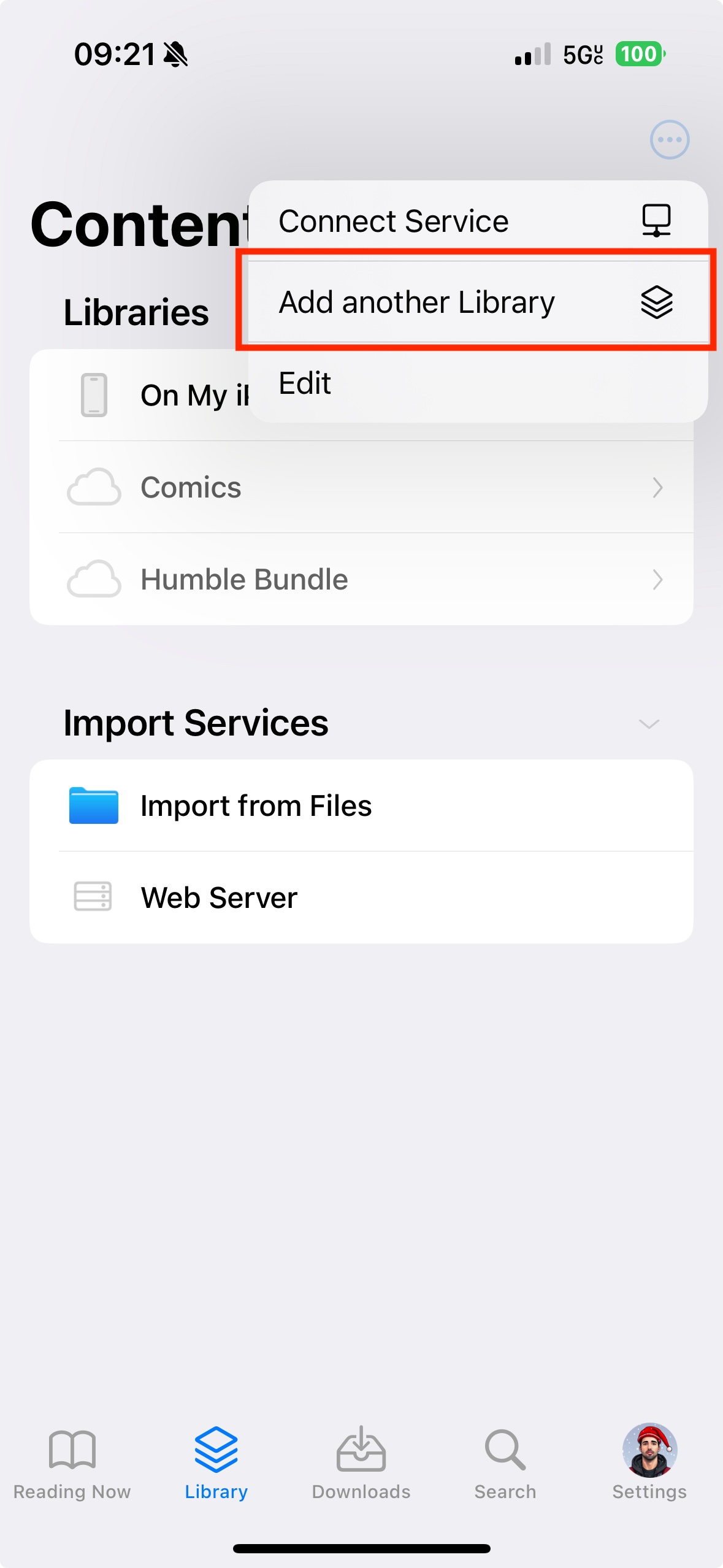
To quickly configure or delete a library, swipe left on it in the list of libraries.
Next steps
- Keep a library synced with iCloud Drive
- Lock private content behind a password or Face ID
- Move your library to a new device